How to Create a Google Business Profile (2026 Steps)
Create a Google Business Profile step by step: name, category, address or service area, verification and the details to add after. Free – with Nashik tips.
 Uday SatputeFounder & CEO, Clickhold7 min read
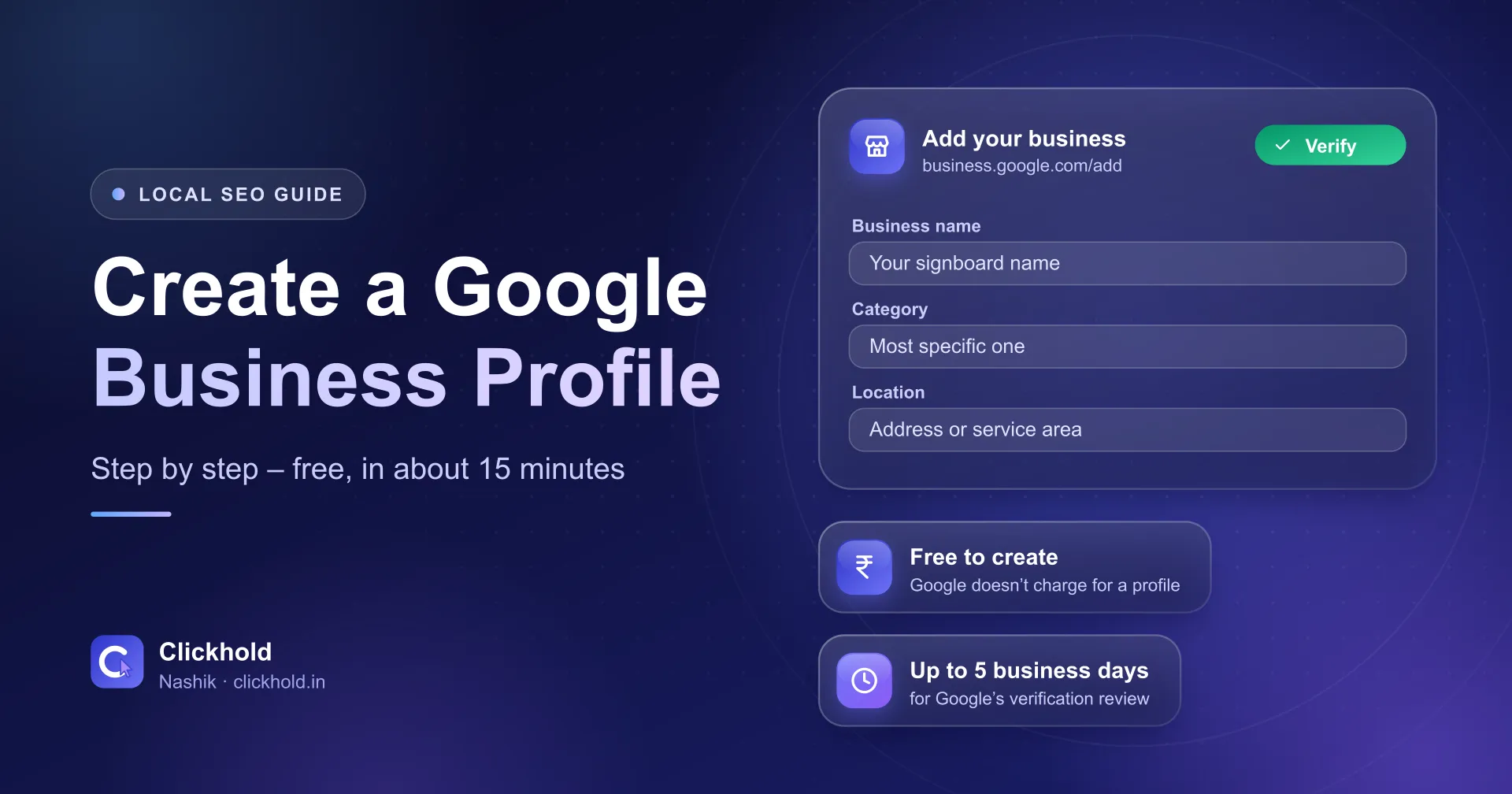
- FreeGoogle doesn't charge for a profile
- Up to 5 business daysfor Google's verification review
- Search firstyour business may already be on Maps
- One profile onlyper business, per location
On this page
- 01Step 1: Is your business already on Google Maps?
- 02Step 2: What name and category should you enter?
- 03Step 3: Address or service area – which one are you?
- 04Step 4: Phone number and website
- 05Step 5: How do you verify a Google Business Profile?
- 06Step 6: What should you add after verification?
- 07What mistakes should you avoid?
- 08How do you get the new profile to show up in searches?
- 09Do it yourself, or get help?
Quick answer
To create a Google Business Profile, go to business.google.com/add, click "Add your business to Google", enter your real business name, choose a category, add your address or service area, phone and website, then verify. Google doesn't charge for the profile. Verification reviews usually take up to 5 business days. If you want help, Clickhold sets it up starting from ₹2,799 one-time.
Key takeaways
- Search your business name on Google Maps first – if a listing already exists, claim it instead of making a new one.
- Use your real signboard name and the most specific category. Extra keywords in the name break Google's rules.
- If customers don't visit you, hide your address and list service areas instead.
- Don't change your name, address or category while a verification is pending.
- A new profile is only the start: hours, photos, description, services and reviews make it useful.
To create a Google Business Profile, open business.google.com/add, click “Add your business to Google”, enter your real business name and category, add your address or service area, phone and website, and then verify. It’s free. Verification usually takes up to 5 business days.
I’m Uday, founder of Clickhold. The form takes about 15 minutes. What decides whether the profile actually brings calls are the choices you make in it – and a few mistakes that are hard to undo later. Here is the process in the order you’ll see it.
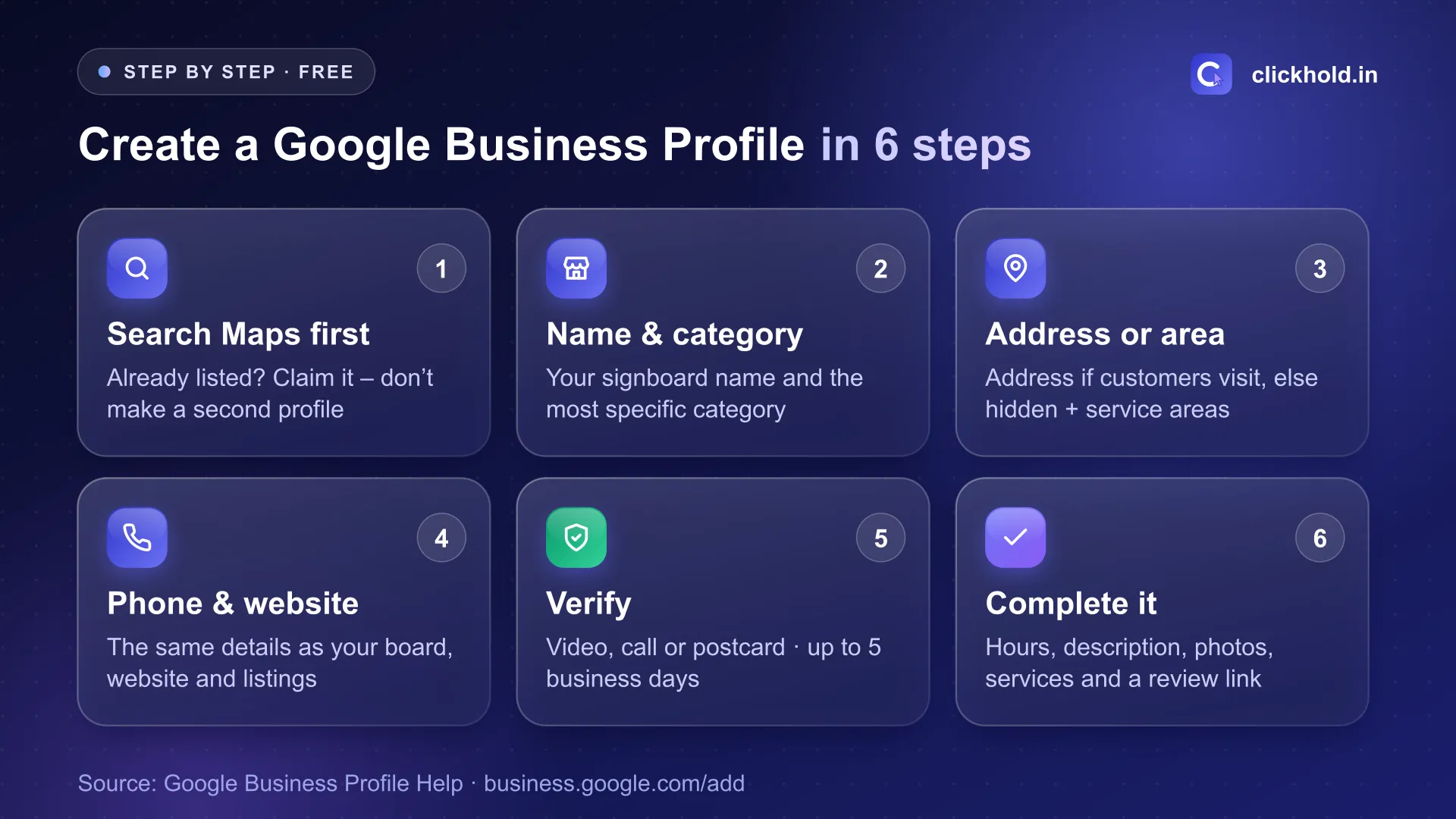
Six steps, about 15 minutes of form-filling – plus Google's review time.
Step 1: Is your business already on Google Maps?
Search your business name on Google Maps before you create anything. Many Nashik shops are already listed – a customer added them, or an old owner made a listing years ago.
- Found, with “Claim this business” – claim it. Google’s page on adding or claiming a profile explains how: open the listing in the Maps app, tap About, then Claim this business.
- Found, but verified by someone else – an ex-employee or old agency, usually. Request ownership from the listing instead of making a second profile.
- Nothing comes up – go to step 2.
Google’s guidelines allow one profile per business per location. A second profile “to start fresh” can get both hidden or suspended.
Which Google account? One that you, the owner, control and will keep for years. If a staff member creates it in their own account and later leaves, you can be locked out of your own listing. Add staff or an agency as managers later.
Step 2: What name and category should you enter?
Go to business.google.com/add and click Add your business to Google.
Business name: exactly as on your signboard and bills. “Shree Ganesh Hardware” – not “Shree Ganesh Hardware Best Plumbing Shop CIDCO Nashik”. Google says unnecessary information in the name isn’t permitted, and keyword-stuffed names are a common reason for suspensions.
Category: the most specific one that’s true – “Dentist” rather than “Doctor”, “Sweet shop” rather than “Store”. Google allows up to 10 categories in total, but asks you to choose the fewest that describe your core business.
Not sure which category?
Search your main service on Google Maps, open the top few businesses in your area and see the category under their name. Pick the one that honestly matches what you do.
Step 3: Address or service area – which one are you?
Google asks if customers can visit you. Your answer changes how the profile works.
| Your business | What to choose | Example in Nashik |
|---|---|---|
| Customers come to you | Full address, pin on your door | Clinic on College Road, café on Gangapur Road |
| You go to customers | Address hidden, service areas added | Plumber, pest control, home tutor, AC repair |
| Both | Address shown, plus service areas | Hardware shop that also does fitting at home |
Rules from Google’s guidelines and its service area page:
- A real place where you work – no P.O. boxes; virtual offices aren’t eligible.
- Service-area businesses hide their address. Showing a home address where customers never come causes trouble.
- Only areas you really serve – up to 20, within about 2 hours’ drive. A Nashik electrician can list Nashik Road, Satpur and Sinnar, not Pune.
Check the pin. An auto-filled pin can land a few buildings away. Drag it to your actual entrance – that’s where Directions will send people.
Step 4: Phone number and website
Add the number customers should call – the same one on your signboard and WhatsApp. Add your website if you have one; if not, add it later. A website helps Google judge how established you are, and customers check it before calling. Starting from zero? Here’s what a website costs in Nashik.
Keep your name, address and phone the same on your website, Facebook and directories like Justdial. Mismatches make Google less sure about you.
Step 5: How do you verify a Google Business Profile?
Google’s verification help page lists phone or text, email, video recording, live video call and postcard. You can’t pick freely – Google decides which methods to offer.
If you get video recording, show in one continuous shot:
- Where you are – the signboard outside, the road or nearby shops.
- Your business – the inside, your stock or tools.
- Proof you run it – unlocking the shutter, the billing counter, your equipment.
Google says reviews usually take up to 5 business days. Postcard codes mostly arrive within 14 days and expire after 30.
Don't touch the profile while you wait
Google says editing the name, address or category while a postcard is on its way makes the code invalid, and requesting a new code cancels the old one. Fill everything in correctly once, verify, then make changes.
If verification fails, the “Get verified” button comes back – try again or try another method. If the profile goes missing later, see business not showing on Google Maps.
Step 6: What should you add after verification?
A profile with only a name and phone won’t win many calls. Add:
- Hours – real customer-facing hours, plus holiday hours for Diwali and other festivals.
- Description – up to 750 characters on what you do and for whom. Google’s editing help says no URLs, and to focus on the business, not offers.
- Photos – your board from the road, the inside, your team and real work.
- Services or products – with prices where you can.
- Review link – send it on WhatsApp after a good job, or print it as a QR code for your counter.
Most edits show within about 10 minutes, but Google can review some for up to 30 days. Change things once, carefully.
What mistakes should you avoid?
- Keywords or area names in the business name
- A second profile because the first was stuck or made by someone else
- A home address shown when customers never come there
- A relative’s shop or virtual office as the address
- Fake or bought reviews – Google removes them and can restrict the profile
- The profile owned by an employee’s or agency’s account
- Ignoring suggested edits – Google now gives you 4 days to accept or reject them
How do you get the new profile to show up in searches?
Creating the profile puts you on the map. Showing for “dentist near me” is a separate job: Google picks local results mainly on relevance, distance and prominence – I explain each in how to rank on Google Maps in Nashik. Nobody can promise a position, but a complete, active profile gives you the best chance.
Do it yourself, or get help?
Most owners can do this themselves – it’s free, and you should own the profile either way. Get help if someone you can’t reach has claimed your listing, if verification keeps failing, or if you don’t have time to set it up properly.
My Google Business Profile optimisation starts from ₹2,799 one-time: creation or recovery, verification support, categories, description, services, photos, the review QR code and matching directory listings – all in your own Google account. On College Road? See how I set up Google Business Profiles for College Road businesses.
WhatsApp or call me with your business name and area, and I’ll tell you honestly whether you need help.
Want us to look at your business?
Send a WhatsApp message – you'll get honest advice and a clear, written price.
Frequently asked questions
Is a Google Business Profile free?
Yes. Google says adding or claiming a Business Profile is free. You only pay if you hire someone to set it up or manage it for you – with Clickhold that starts from ₹2,799 one-time.
Can I create a Google Business Profile without a shop or office?
Yes, if you meet customers in person at their place – like a plumber, tutor or AC repair service. Choose the service-area option, hide your home address and list the areas you really serve. Online-only businesses with no in-person contact are not eligible.
How long does it take for a new profile to show on Google Maps?
Google says verification reviews usually take up to 5 business days. After that, search your exact business name on Maps from a private window. If it still doesn't show, check the profile for a status message.
Can I create a Google Business Profile from my phone?
Yes. Open business.google.com/add in your phone's browser and follow the same steps. To claim a listing that already exists, open it in the Google Maps app, tap About, then "Claim this business".
Which Google account should I use to create my profile?
Use a Google account that you, the owner, control and will keep for years. Don't let an employee or an agency create it in their own account – you can add them as managers later and remove them when they leave.